
Game Menu
The clipboard in hotbar slot 9 is this world’s Game Menu. The map, the Journal, the squad, the outpost, skills, settings, and changing character are all reached from here. It is always there and opens in any situation, because many of the buttons that get you out of trouble are inside it.
Slot 9 is always there
Link to the “Slot 9 is always there” section- It cannot be dropped, moved, or put in a chest or item frame. You do not lose it on death, and it is not taken when someone loots you. If another item really does push it out, it is put back within one second.
- Holding it counts as an empty hand, and left-click throws a punch. Left-click or F while holding it jumps your hand back to the slot you used last.
- Just switching to slot 9 does not open it by itself; you have to right-click.
- Right-click while holding it opens the menu no matter who you are facing, and does not talk to anyone. To talk to someone, switch to another slot first.
- While lying in a bed, tied up, carrying something, or looking at the map, pressing slot 9 still opens the menu first.
- While unconscious, dead, or in Auto Mode, your hand is fixed on slot 9, and right-click opens it.
How to open it
Link to the “How to open it” section- Right-click while holding slot 9.
- Press E to open the inventory and click it with an empty cursor.
- Press Shift+F, without switching to slot 9 first.
- Press G.
- Press Esc and click Game Menu in the pause menu.
G and Esc open the same menu as slot 9, but they need the resource pack.
Shift+F occasionally does not open it. If that press of Shift has already done something else, such as getting up, struggling, dismounting, letting go of a wall, stopping what you were doing, or toggling Sneak Mode, chat says something like “You pressed Shift to get up, so the menu didn’t open”. Stay crouched and press F once more and it opens. While the World Map is open, while you are choosing a target, or while you are carrying someone, F has its own use and does not open the menu either.
The main screen
Link to the “The main screen” sectionFrom top to bottom:
- Exit Outpost: appears only while you are inside your own outpost, and takes you back to where you were before you entered it.
- World Map and Journal: the Journal appears only after you have recorded your first entry.
- A row of icons: Squad (appears only when you have squad members), Camp, Outpost, Skills, Faction Relations. Hover over one to read its name.
- Jobs, Build, and Research: three buttons on one row, there only while you are inside an outpost. Out in the wilds the whole row is left out and the buttons below move up, with no empty gap.
- Bound Gear…
- Travel Settings… and Preferences…
- Back to Game: closes the menu. A grey line below reminds you that Shift+F opens it too.
- Two small red buttons in the bottom-right corner: Suicide and Switch Character.
Where each one leads is in the table at the bottom of the page. On any page you enter, Back at the bottom returns to the previous page, and Esc does the same. On the main screen, Esc closes the menu. G and Esc open the same main screen, so outside an outpost it has no Jobs, Build, and Research row either.
The two red buttons
Link to the “The two red buttons” sectionBoth are tucked into the bottom-right corner where they are hard to press by mistake, and both ask you once before doing anything.
- Switch Character: the confirmation box says “Switch character?” and “Returns to the character camp”. After you confirm, you return to the camp to change to another character or create a new one in an empty seat. See Characters.
- Suicide: the current character dies on the spot. Bounty, sentence, and restraints are cleared together; slave status is not cleared. It does not appear when you are already dead. For what follows death, see Death and Respawn.
When you are down
Link to the “When you are down” sectionIt is still the same menu, but a few buttons that are only useful at that moment appear at the very top, followed by an empty row and then the usual main screen:
- Switch Squad Member: when you have another squad member, take control of them. It is there even while you are being carried or executed. See Switching Members.
- Get Up: when you have woken up but are still playing dead. When a leg injury keeps you from standing it is Crawl, and you crawl on both hands.
- Stop watching: when you are watching a squad member who was taken away, it returns you to your own view.
- Fast Travel: when an escort is carrying you, you travel fast together with whoever carries you.
How unconsciousness itself works and how long it takes to wake up are in Knockout.
When you are dead
Link to the “When you are dead” section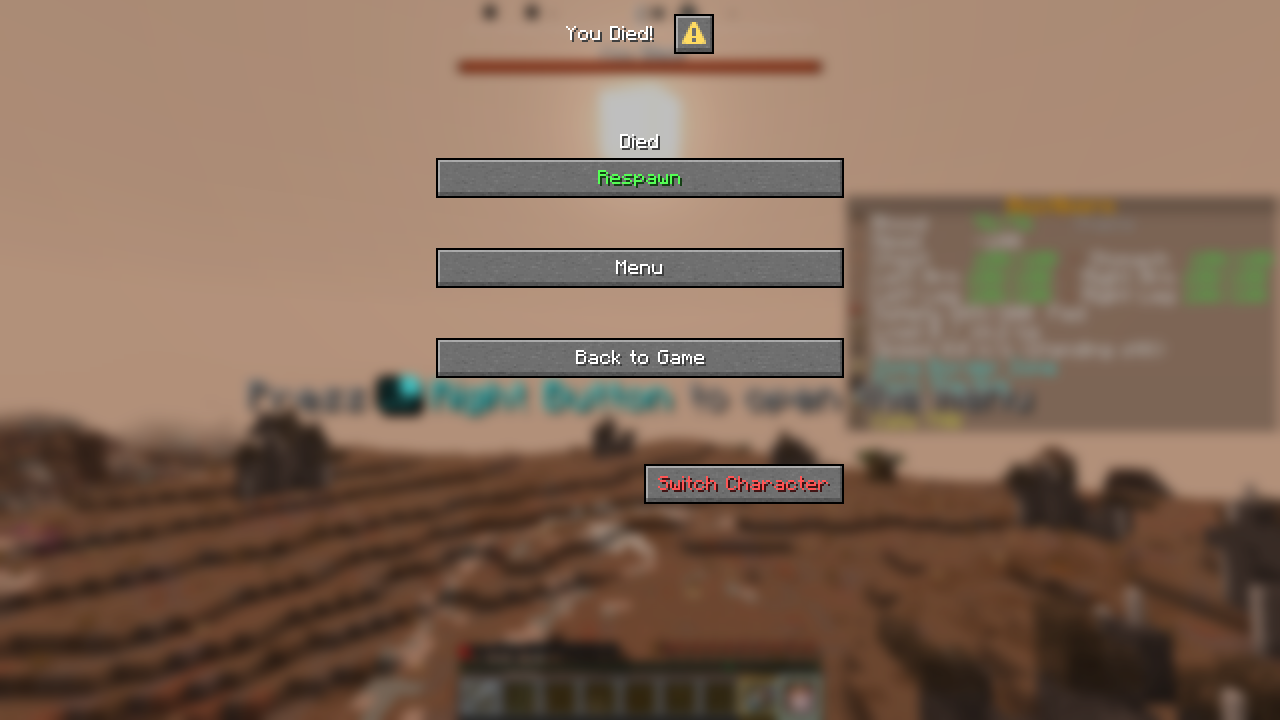
Opening the menu first shows the “You Died!” page: one line for the cause of death, then Respawn below it, and sometimes Switch Squad Member (to take control of a squad member who is still alive, even while you are locked up) or Spectate and Wait (you are switched back automatically when you wake up or are rescued). Below that is Menu, which leads to the usual main screen, where Back at the bottom returns to this page. Only the red Switch Character remains in the bottom-right corner.
The bar with the same words at the top of the screen stays until you respawn or change character.
When you are in Auto Mode
Link to the “When you are in Auto Mode” sectionWhile the character is acting by themselves in Auto Mode (for example travelling automatically, holding a position, or following another squad), the main screen gains a section in the middle. The first line reads “Auto Mode: …” with what the character is doing, and below it are the actions you can change to and Exit Auto. For what each action means, see Auto Mode.
| How to open | Condition | Notes |
|---|---|---|
| Right-click while holding slot 9 | None | The most reliable way; works in any situation |
| Click slot 9 in the inventory | Nothing on the cursor | Left-click or right-click both work; the inventory closes first |
| Shift+F | That press of Shift did nothing else first | Does not open with the map open, while choosing a target, or while carrying someone |
| G | With the resource pack | Does not open at the character camp, during character creation, or while placing a foundation |
| Esc → Game Menu | With the resource pack | This button does not appear on the death page |
| Button | When it is there | Use | Details |
|---|---|---|---|
| Exit Outpost | Inside your own outpost | Return to where you were before entering the outpost | Outpost |
| World Map | Always | View the map and mark the place you want to go | World Map and Navigation |
| Journal | After the first entry is recorded | Recorded rumours and sightings | Journal |
| Squad icon | When you have squad members | Members’ status, health, and distance | Orders and Behaviour |
| Camp icon | Always | Place a campfire or a Camp Bed | Camp |
| Outpost icon | Always | Create, travel to, expand, or abandon your own outpost, and build inside it | Outpost |
| Jobs | Inside an outpost | Opens Jobs: squad members’ job order, plus the work blocks this character placed in this outpost | Work Block Atlas |
| Build | Inside an outpost | Opens the work block atlas: what each one does, how to make it and its level. Storage, beds and counters are built from here too | Building |
| Research | Inside an outpost | Opens the research overview: tech level, what can be researched now and what the next level needs | Blueprints, Recipes and Research |
| Skills icon | Always | Skill levels | Combat |
| Faction Relations icon | Always | Bounties, faction relations and where pacifiers are | Faction Relations |
| Bound Gear… | Always | View bound gear and where each piece is now | Bound Gear |
| Travel Settings… | Most of the time | Auto Mode actions, the follow camera, and known places | Auto Mode |
| Preferences… | Always | Language, nameplates, chat, and item glow | Settings |
| Back to Game | Always | Close the menu and return to the game | — |
| Suicide | While alive | The current character dies; asks first | Death and Respawn |
| Switch Character | Always | Return to the character camp to change character or create a new one | Characters |
| Situation | Number | Notes |
|---|---|---|
| How soon the slot 9 menu comes back after something pushes it out | Within 1 second | Whatever was in that slot moves to another slot or to your feet |
| How many extra buttons the menu gets when you’re down | Up to 4 | Switch Squad Member, Get Up, Stop watching, Fast Travel |
| Which buttons the menu has when you die | Respawn, plus up to 2 more | Switch Squad Member and Spectate and Wait appear depending on the situation |
See also
Link to the “See also” sectionOfficial siteHow to joinWorld mapFAQ
DustMoon.net is not an official product of Mojang Studios or Microsoft, and is not approved or endorsed by them.
DustMoon is inspired by the world of Kenshi and is not affiliated with Lo-Fi Games.
© 2026 DustMoon.net