
Settings
Preferences is a page in the Game Menu for setting what the screen shows, which messages appear in chat, and which language is used. A click saves the setting; there is no Apply to press. Settings are one copy per character, so after changing character you have to adjust them again.
Most people only touch two or three: turn nameplates off if they are too noisy, change the scoreboard to Compact if it is too full, change the language if you want the interface in English. The defaults are good enough for the rest.
How to open it
Link to the “How to open it” sectionPress Game Menu in hotbar slot 9 (for how to open it, see Game Menu) and click Preferences…. The first page is the sections:
- Display…
- Sound & Dialogue…
- Scoreboard…
- Language: …, which changes directly on click
- Rent out while offline: …, which appears only while you are controlling a character
A button whose name ends in “…” is a section, and the actual switches are inside. Hovering over a button shows one line of explanation. Back at the bottom of every page goes up one level, and Esc does the same.
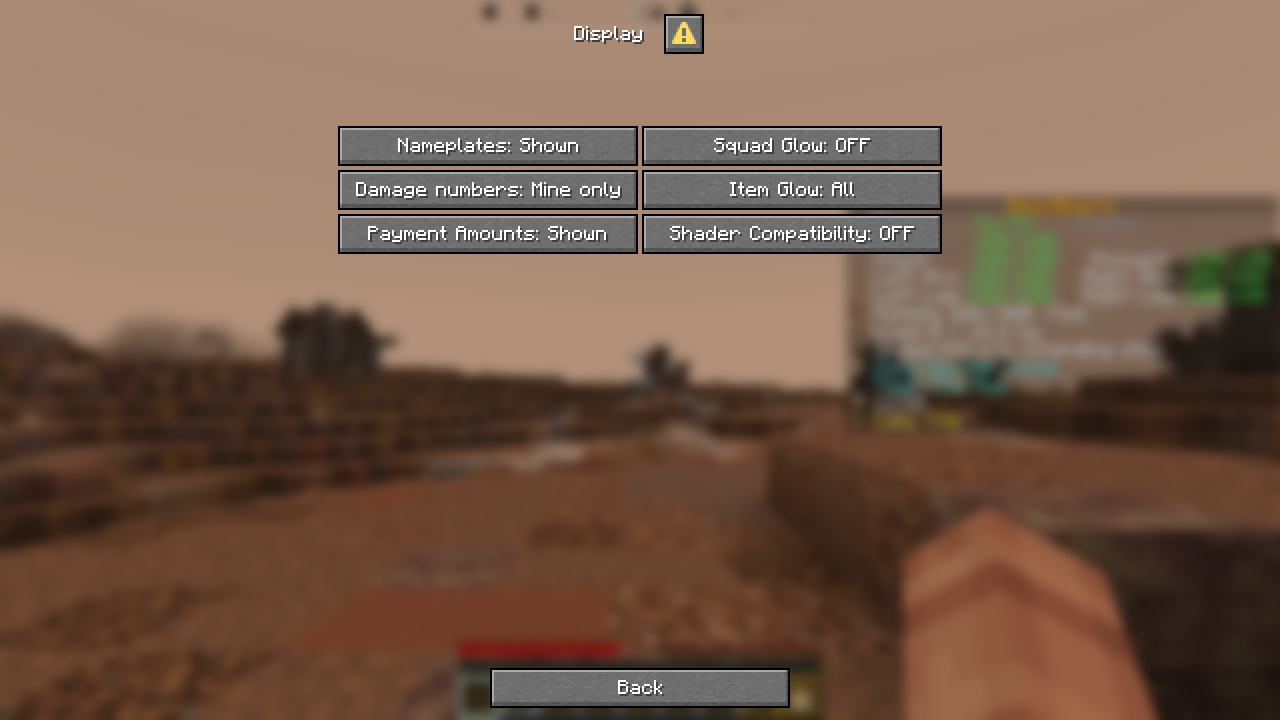
- Nameplates: the name and status above people’s heads, Shown or Hidden. For how to read the text on a nameplate, see Nameplates and Skeleton Eye Scope.
- Squad Glow: gives squad members a green outline so they are easy to pick out in a crowd. It is off by default.
- Damage numbers: the numbers that float up on a hit. It cycles through three settings: Mine only, All, OFF. The default is Mine only.
- Item Glow: items on the ground glow according to quality. Clicking opens a sub-page; see the next section.
- Payment Amounts: when someone else pays, the change in amount floats above their head and chat gains a payment message. Hide it if it is too noisy.
- Shader Compatibility: with a shader pack on, turn this on if you cannot see other people’s movements or armour blocks the view. People who do not use shaders can leave it alone.
The Item Glow sub-page
Link to the “The Item Glow sub-page” section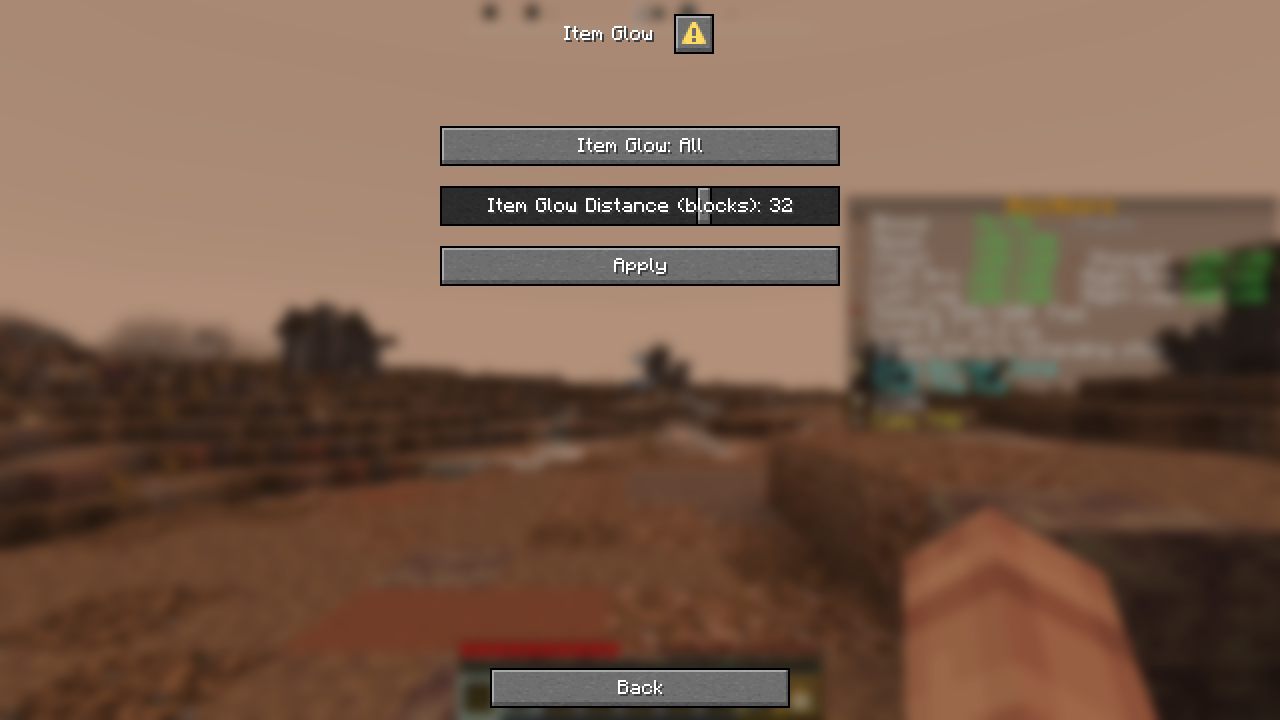
The sub-page has two things: quality and distance. Quality runs in order through All, Shoddy+, Standard+, High+, Specialist+, and OFF. Distance is a slider from 0 to 48 blocks, 32 blocks by default. Setting quality to OFF means nothing glows at all.
This page is saved only when you press Apply, the one exception in all of Preferences. For what quality means, see Quality and Grades.
Sound and dialogue
Link to the “Sound and dialogue” section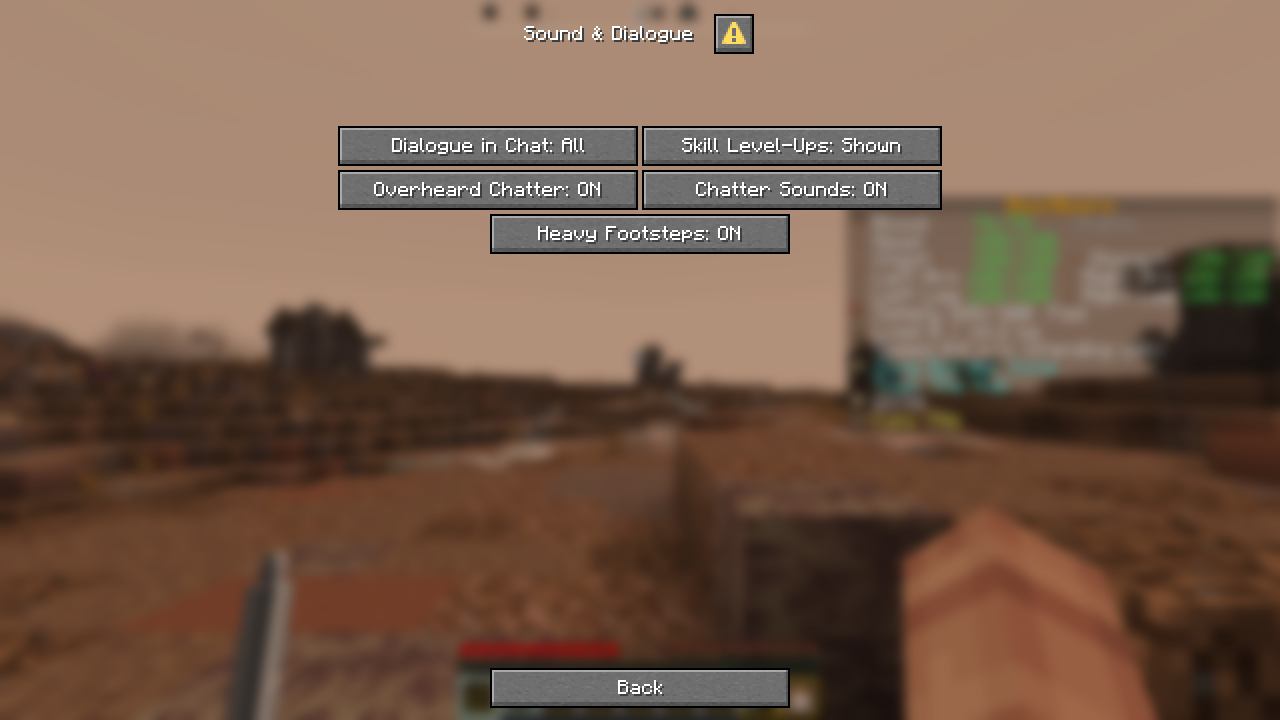
- Dialogue in Chat: whether what others say to you and to your squad members goes into chat. It cycles through three settings: All, No Squad, OFF.
- Skill Level-Ups: the one-line message in chat when a skill levels up, Shown or Hidden.
- Overheard Chatter: the chatter between passers-by near you; when on, it goes into chat in grey. This switch does not appear while Dialogue in Chat is OFF.
- Chatter Sounds: the sounds people make when they speak. The volume is not set here but under “Voice/Speech” in Minecraft’s sound settings.
- Heavy Footsteps: the heavy steps of large creatures walking. The volume follows “Hostile Creatures” or “Friendly Creatures”.
Scoreboard
Link to the “Scoreboard” sectionThe scoreboard on the right of the screen has three settings:
| Setting | Look |
|---|---|
| Full | Every row has its name and state |
| Compact | Only icons and numbers; body parts unfold only when hurt |
| Hidden | Not shown; bleeding and worsening wounds are announced in the middle of the screen instead |
Compact lets you turn items on and off one by one, fourteen in all, and each click takes effect at once. Clicking an item while in Full or Hidden switches the scoreboard to Compact. The per-item choices only matter in Compact. For what each row says and what the colours mean, see Reading the Screen.
Hover over the Disguise item and its tip reads: “Shown as 66% after a hooded dustcoat icon. Once seen through, the hood is pulled down to show the face, and the remaining seconds show in red”. Hover over the Slave Look item and its tip reads: “Shown as 37% after a shackles icon”.
To remove the scoreboard’s background colour as well, go to Minecraft’s own settings: Options → Accessibility Settings → set Text Background to “Everywhere”, then set Text Background Opacity to 0%.
Language
Link to the “Language” sectionLanguage: … is a choice of three, moving to the next on each click: Use Game Language, Traditional Chinese, English. Menus, nameplates, item names, and messages change with it at once, with no need to reconnect. “Use Game Language” follows the language setting of Minecraft itself.
The first page of character creation also asks for the language; see Character Creation.
Checking the weather
Link to the “Checking the weather” sectionTo know what natural hazards the area under your feet has, look at the row after the clock on the scoreboard, or turn to the Weather tab in the Journal. A glance before you enter or leave a new stretch of land is better than finding out when a sandstorm reaches you. For details on each kind of weather, see Weather.
Other things
Link to the “Other things” section- Travel Settings… is a separate page in the Game Menu for setting Auto Mode actions, the follow camera, Sneak Mode, and known places. See Auto Mode.
- Rent out while offline is one switch per character, on by default. While it is on, this character waits in a bar as a mercenary after going offline and can be hired by other travellers. Details are in Rules Between Travellers.
- Key hints on screen follow your own key bindings. To change keys, do it under Minecraft’s Options and the hints change with them. For the default keys, see Controls.
| Setting | Options | Default |
|---|---|---|
| Nameplates | Shown/Hidden | Shown |
| Squad Glow | ON/OFF | OFF |
| Damage numbers | Mine only/All/OFF | Mine only |
| Item Glow: quality | All/Shoddy+/Standard+/High+/Specialist+/OFF | All |
| Item Glow: distance | 0–48 blocks | 32 blocks |
| Payment Amounts | Shown/Hidden | Shown |
| Shader Compatibility | ON/OFF | OFF |
| Dialogue in Chat | All/No Squad/OFF | All |
| Skill Level-Ups | Shown/Hidden | Shown |
| Overheard Chatter | ON/OFF | ON |
| Chatter Sounds | ON/OFF | ON |
| Heavy Footsteps | ON/OFF | ON |
| Scoreboard | Full/Compact/Hidden | Full |
| Compact scoreboard items | Fourteen: Name, Time, Weather, Blood, Body Parts, Show Unhurt Parts, Satiety, Load, Speed, Location, Disguise, Slave Look, Cats, Bounty | Name, Show Unhurt Parts, and Location off; the rest on |
| Language | Use Game Language/Traditional Chinese/English | Use Game Language |
| Rent out while offline | On/Off | On |
For the Blood item, a Skeleton sees “Oil”.
See also
Link to the “See also” sectionOfficial siteHow to joinWorld mapFAQ
DustMoon.net is not an official product of Mojang Studios or Microsoft, and is not approved or endorsed by them.
DustMoon is inspired by the world of Kenshi and is not affiliated with Lo-Fi Games.
© 2026 DustMoon.net